 Afield
In this article
Product images are based on retained interface captures; selected screenshots are AI-enhanced for clarity. Diagrams are labeled illustrations.
Start by attaching the product image and checking that Afield describes the image you actually supplied. Image analysis, storyboard preparation and video rendering are separate steps: a correct description or a saved script is not a completed video.
Afield has a workflow for requesting generated scenes and assembling media. Treat this guide as a planning and review procedure, not proof that a particular image-to-video request has passed acceptance. Provider availability, supported orientation and the returned media still need to be checked for your task. Do not promise a finished campaign asset from a reference image alone.
 Click image for full resolution Step 1 — Use the paperclip to attach the image, then describe the requested motion in the message box. This screenshot shows the prepared text only; it has not been submitted and no image is attached in this particular input demonstration.
Start with the job of the clip
Decide where the video will appear and what the viewer should understand. A product-page demonstration may need legible interfaces. A short social clip may need one visual idea that makes sense without sound. A cinematic camera move can look attractive while obscuring the product.
Choose one primary objective. For example: “Show a founder moving from scattered customer research to one reviewable draft.” Then state which part of the uploaded image anchors that idea.
Specify what must remain consistent
List the elements you want preserved: the person's identity and clothing, the product's shape, the logo's proportions, or the screenshot's text. Avoid silently allowing a model to redraw a meaningful UI label.
If exact interface text matters, use a real screen recording or a controlled graphic treatment. An image-generation system may introduce visual changes even when the prompt asks it not to.
Use the uploaded image as the reference. Keep the main person, clothing
and product shape consistent. Prepare a script for a 10-second landscape clip.
0–3 seconds: a gentle camera move establishes the workspace.
3–7 seconds: move attention toward the existing product area.
7–10 seconds: settle into a clear final composition.
Use smooth transitions, restrained motion and no invented interface text.
Show me the saved script and storyboard for confirmation first.
After I confirm, deliver one complete playable video file. Do not publish.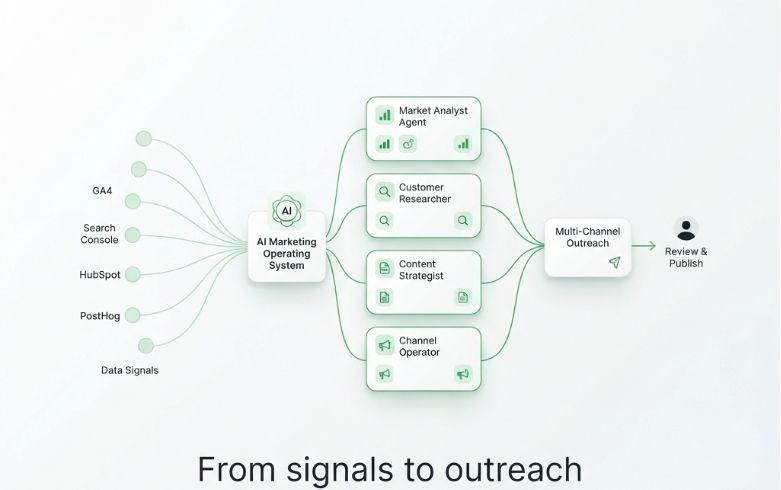 Click image for full resolution Reference example — This is a screenshot of an actual previously generated Afield image. It is a marketing visual, not a screenshot of the product UI. Use your own uploaded or generated image as the reference for the next task.
Make transitions and timing explicit
The storyboard should specify individual shots and their intended order. Describe your intended result rather than the technical segment lengths. If you want a particular opening, transition or ending, include it as a creative constraint. The total requested duration belongs to the finished video, not to each provider clip.
| Segment | Viewer should notice | Review check |
|---|---|---|
| Establishing shot | The subject and setting | No unintended new person or object |
| Demonstration | The product-related idea | Motion helps rather than hides it |
| Closing shot | A readable final state | Enough time to understand the image |
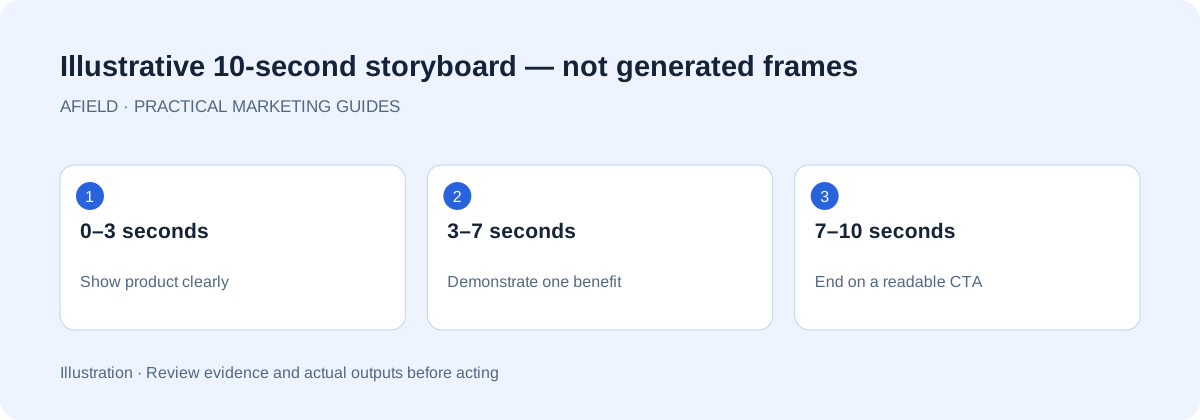 Click image for full resolution Illustrated storyboard; these panels explain shot intent and are not frames from a generated clip.
Review and confirm the script
Afield first saves the complete script and ordered storyboard in the current conversation. Video generation has not started at this point. Review the shot order, each shot’s duration, the total runtime, captions, orientation and any reference image or background music.
Describe any changes, then review the updated script. Confirm the exact saved version you want to generate; each revision needs its own confirmation. Afield currently does not synthesize spoken narration.
After confirming the script, return to the original conversation to follow generation progress. Accept a completed result only when the conversation provides a playable file and download action that work. A queued or running card is not the deliverable.
Inspect the actual file
When Afield returns the result, open the video and play it from start to finish. Download it as well if you intend to edit or share it later. A preview image is not proof that the video URL works, and a working URL is not proof that the content follows the brief.
Check the duration, orientation, subject consistency, transitions, unintended text and last frame. Watch once for content and once for motion. If the request included audio, check it separately; do not assume the visual generation included sound.
View the original 2-second video player capture Step 3 — Inspect the delivered player before accepting the result. This separate earlier clip shows a two-second runtime; it is not the ten-second, three-shot example above. Check duration, aspect ratio, text and motion against the request, then download and inspect the file.
A longer marketing brief and a retained frame
The brief below asks for a 40-second Afield promotion for small-team founders. A retained frame illustrates the intended campaign style. The article does not include the full playable film, so the frame alone cannot demonstrate its runtime, soundtrack or transitions. The scene is generated marketing imagery, not a product recording or customer testimonial.
Create a 40-second English marketing video for small-team founders. Show discovering customer needs, preparing content and outreach drafts, and reviewing before sending. Keep it fast-paced. Prepare the script and storyboard for my confirmation. After I confirm, generate the scenes and assemble one complete video. Do not publish. Do not invent results, testimonials or product interfaces.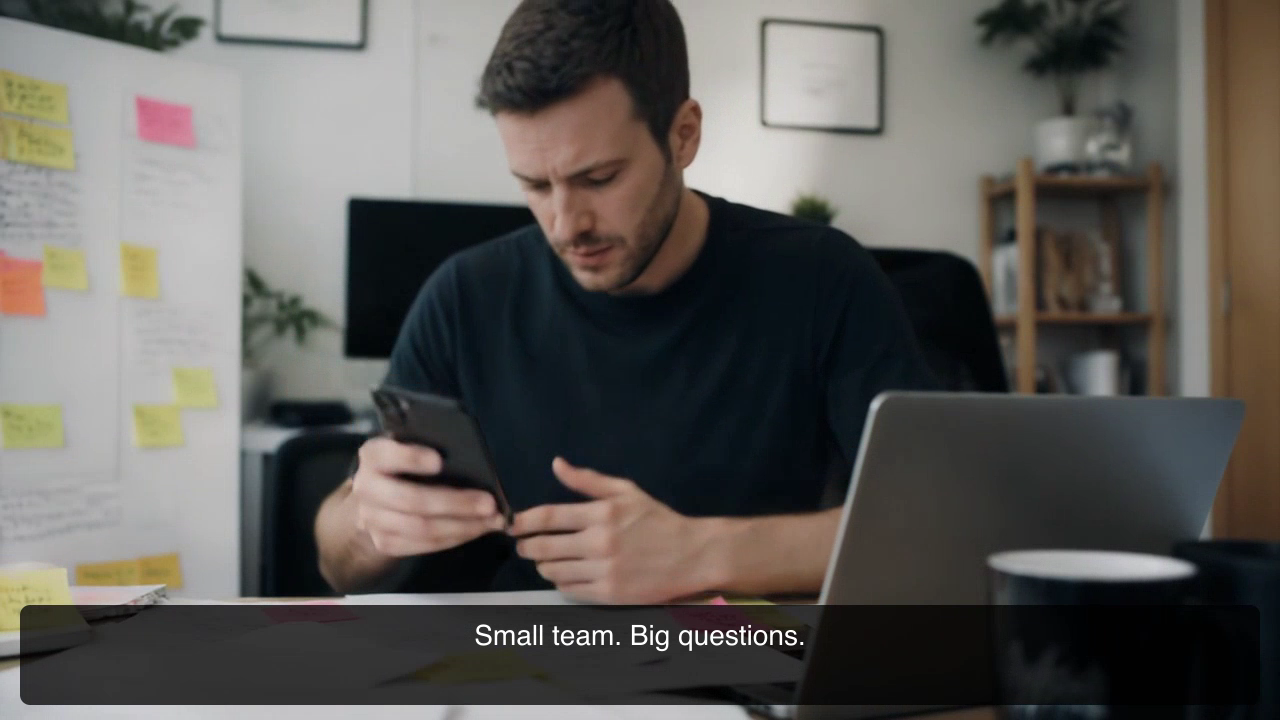
After confirming the script, return to the original chat while video generation runs. Its card shows progress; when finished, the same conversation contains a player and a Download video action. Play the full result and download the single MP4. A running card means the work is in progress, not that the file is already ready. If the task only returns separate clips or a still frame, the requested assembled film is not yet delivered.
Listen to the delivered audio as well. Background music differs from spoken narration; do not assume a voiceover exists unless it is present in the actual file.
Ask for a specific correction
“Make it better” provides little direction. Point to the discrepancy: the person changes after the transition, the camera hides the product, the ending is too abrupt, or the clip does not match the requested duration.
Run one bounded sample before a longer film
Use one reference image, one short shot and a provider-supported orientation before asking for a multi-scene film. Inspect the image description first: the product, visible text, composition and colors should match the attachment. Correct a mismatch before paying for rendering.
Analyze only the image attached to this message. Describe the product,
visible text and composition; mark anything you cannot read.
Prepare one 5-second product shot with restrained motion and no new text.
Before rendering, show the reference, supported orientation, duration,
and cost or credit estimate when available. Wait for my confirmation.
Generate at most one sample. Do not retry or expand into more scenes
without asking. Do not publish.
If the provider rejects an aspect ratio, preserve that response and revise the brief to a supported value. Do not silently launch another paid attempt. If no cost estimate is available, state that gap instead of inventing one.
| Check | Evidence to keep | When not to accept |
|---|---|---|
| Reference | The current attachment and its checked description | Description refers to an older image or makes up unreadable labels |
| File | Playable media and a working download | Only a script, still frame or generation-progress card exists |
| Duration and orientation | The actual file's duration and dimensions | A requested landscape clip is vertical, or the runtime differs materially |
| Product identity | Opening, middle and final frames compared with the source | Shape, packaging or meaningful text changes |
| Audio | A full playback with sound checked separately | Requested audio is absent; music is mistaken for narration |
Download the product-video acceptance worksheet (CSV). Record the requested and observed values for the same file. The blank worksheet is not a completed acceptance record.
If you need an article or social draft while media is being reviewed, continue with content drafting. Keep any rejected sample separate from the approved asset.